How-to
WooCommerce Product Labels with Price: What to Print on Each Tag
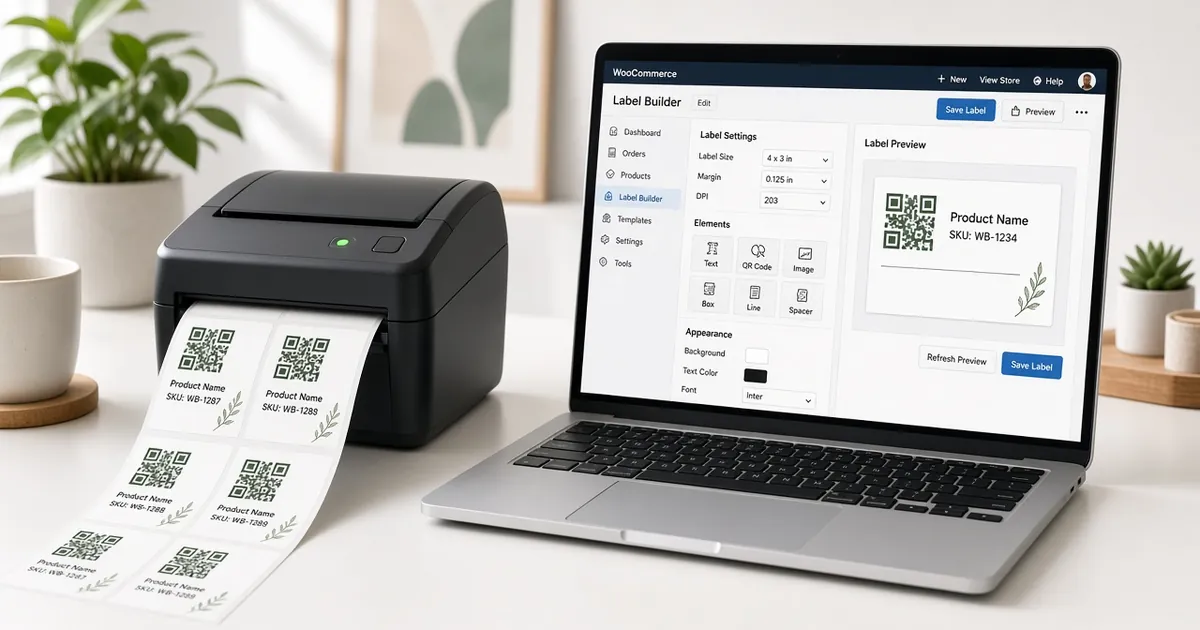
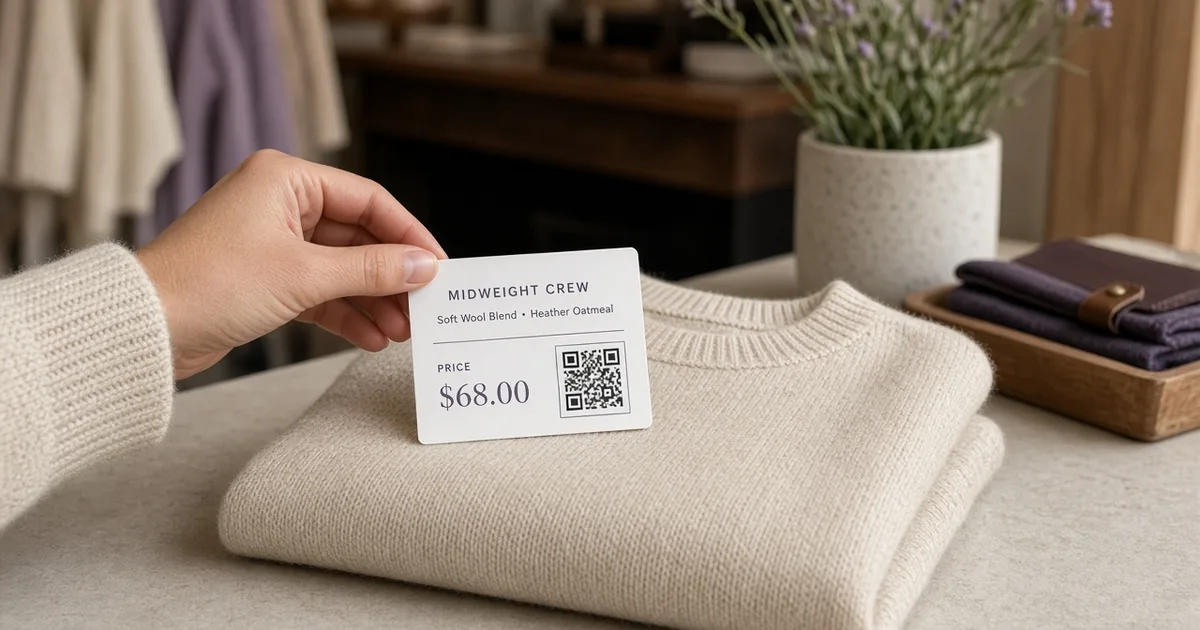
Set Additional Label Info to Price in Scanventory so each QR label shows the product name, its price and a QR code for shelf or counter use.
Read moreScanventory blog
How-tos on QR code labels, stock counts and keeping your store in sync with your shelves.
Set Additional Label Info to Price in Scanventory so each QR label shows the product name, its price and a QR code for shelf or counter use.
Read moreScan each product's QR label as you shelve a delivery and increase WooCommerce stock on the spot, so your store matches the shelf.
Read morePut QR code labels on your stockroom bins so staff can walk the aisle, scan with a phone and correct WooCommerce stock where products sit.
Read moreBuild a quick quote on the shop floor: scan product QR codes with your phone, review quantities, and email it with Scanventory's mobile invoice.
Read moreSet up any label printer for WooCommerce QR code labels: Avery sheets or a thermal roll, using Scanventory's Universal format, live preview and 100% print scale.
Read moreSelling at a counter, market or showroom? Here's how to record in-person sales in WooCommerce so online stock matches the shelf and you don't oversell.
Read moreThree ways to get a WooCommerce stock report: Analytics > Stock, a product CSV export, and a printable Inventory Report for counts and audits.
Read moreWhere WooCommerce records stock changes, where it doesn't, and how an activity log shows who changed stock, what changed and when.
Read morePrint a separate QR code label for every size and colour of a WooCommerce variable product, show the right attribute on each label, and keep variation SKUs tidy.
Read morePrint WooCommerce QR code labels on Avery-compatible sheets, fix alignment with a plain-paper test, and finish a partly used sheet with Start position.
Read moreHow to give every WooCommerce product its own QR code for stock management, print it on a label, and know when a different kind of QR code is the better fit.
Read moreA practical routine for counting stock with QR code scanning and getting WooCommerce to match your shelves, whether you count yearly or every week.
Read moreYou don't need a warehouse scanner to keep WooCommerce stock accurate. Here's how QR code scanning with a phone works and when it's the right fit.
Read moreA step-by-step guide to printing QR code labels for your WooCommerce products from your admin, for your whole catalog or just a few products.
Read more