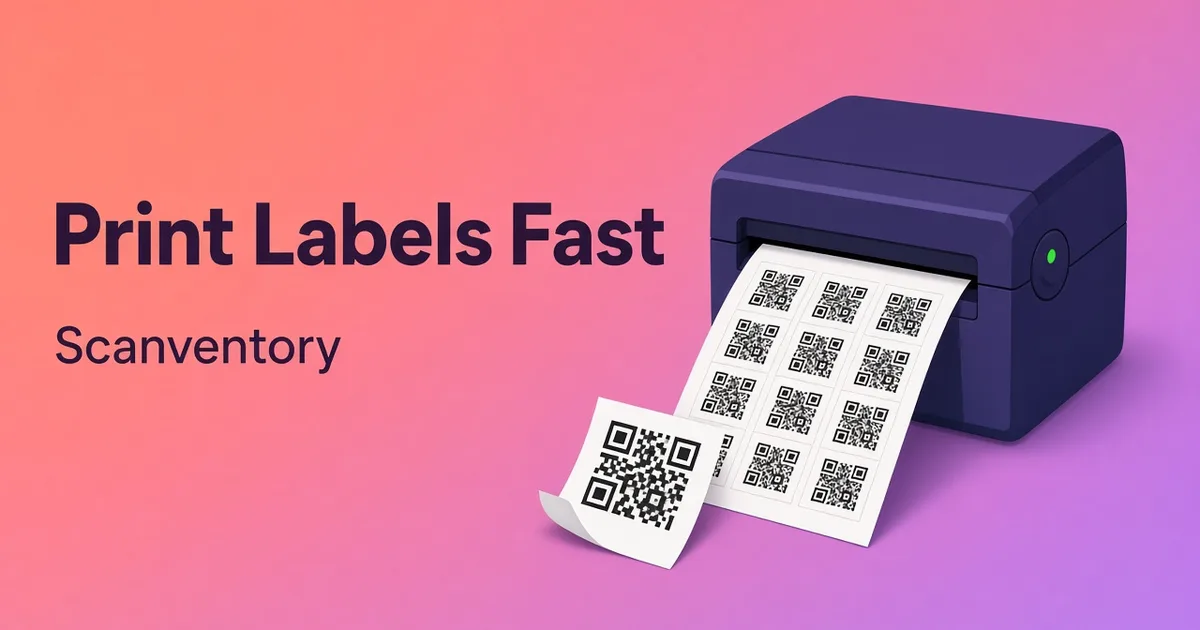
Short answer: You can use the phone you already own as a WooCommerce QR code scanner. Print a QR code label for each product with Scanventory, scan it with the Scanventory app or any QR code reader app, and you go straight to that product to increase or decrease stock. No dedicated scanner hardware is needed.
Below you'll see how the setup works, what it's good for, and where its limits are, so you can decide whether it suits your shop.
Why scan at all if WooCommerce already tracks stock?
WooCommerce reduces stock automatically for online orders when stock management is turned on. It subtracts items as sales are made or orders are returned (WooCommerce product settings). Online sales aren't usually where the trouble starts. It starts with everything that happens off the website:
- items sold at a market stall, pop-up or shop counter
- deliveries that arrive and need adding to stock
- damaged or missing items found during a count
Each of those needs someone to open the product in WP Admin, find it, and type a new number. That's where scanning helps. Scanventory is built for exactly this "everything else": offline sales, restocks and counts, so that your physical and online inventory match (Scanventory FAQ).
How phone scanning works with Scanventory
Scanventory's process has three steps (How it works):
- Generate labels in WooCommerce. Open Scanventory in your admin and print QR code labels for all products at once, or only the ones you pick.
- Scan with your phone. Use the Scanventory app or any QR code reader app on a phone or tablet. The scan takes you straight to that product.
- Edit the stock. Increase or decrease the quantity right there. Your store and your shelf count stay in sync.
Each label carries the product name, SKU and its own unique QR code (Features). Most phone cameras can read QR codes (QRcode.com), which is why no special device is needed.
Setting it up
1. Install and activate
Upload the plugin under Plugins → Add New → Upload Plugin and activate it. WooCommerce must already be installed and active. You'll need WordPress 5.0+, WooCommerce 5.0+ and PHP 7.4+ (Installation).
2. Print your labels
Open Scanventory → Label Builder, choose a format (an Avery-compatible sheet or Universal for any printer), check the Live Preview, and click Build Labels (Label Builder). Print at 100% scale with "fit to page" turned off (Universal Options). For variable products you can print one label per variation by setting Label For Variations to Yes.
Our step-by-step label printing guide goes through every option.
3. Stick labels where people will scan
Put labels on the products themselves, or on shelves and bins. The Scanventory site also mentions printing custom labels for your warehouse bins, so you can walk the aisles and correct stock where the products actually are (Scanventory homepage).
4. Scan and update
Point the phone at a label, open the product, adjust the quantity, and save. That's the whole loop.
Keeping track of who changed what
When several people update stock from their phones, you'll want a record. Scanventory's Activity Log lists the stock updates made through the plugin (Activity Log):
- When: the date and time of the change
- Who: the user who made it, linked to their profile
- What: a description of the change, linked to the product
If a number looks wrong at the end of the week, this is where you look first.
Bonus: a quick quote or invoice from the shop floor
If you turn on Invoice under Stock Rules, staff can scan products into a temporary quote/invoice list on their device, review quantities, and send it by email through WooCommerce's email system as the "Scanventory Invoice" email (Mobile & Invoice).
Keep in mind what it is. The list is stored in a cookie-based session on the device, and it is separate from WooCommerce orders. It's a lightweight helper for floor staff, not a replacement for checkout.
Phone vs. dedicated scanner: an honest comparison
A phone is a good fit if:
- you have a small team and a manageable number of products
- stock changes mostly happen during restocks, counts and in-person sales
- you'd rather not buy and maintain extra hardware
- you want staff to update stock wherever the products are
A dedicated scanner may suit you better if:
- you scan hundreds of items an hour at a fixed packing station
- your workflow depends on EAN or UPC codes already printed on supplier packaging. Scanventory works with its own QR code labels; EAN and UPC are not supported yet
Plenty of shops start with phones and only think about hardware if volume really calls for it.
Tips for smooth phone scanning
- Size the QR code sensibly. In Universal format you can set the printed QR size in millimetres (Universal Options). Bigger codes are easier to scan from a distance.
- Use a safe area so the code isn't cut off at the label edge.
- Use one label per variation if variations are stored separately. Otherwise staff will have to choose the right variation by hand.
- Give each staff member their own WordPress user so the Activity Log shows who actually made each change.
FAQ
Do I need a special scanner for Scanventory? No. Any phone or tablet that can scan QR codes works, with the Scanventory app or any QR code reader app (Scanventory FAQ).
Will scanning change my online orders? No. Scanning opens the product so you can edit its stock quantity. WooCommerce still handles online orders and their stock reductions as normal.
Can I scan product labels for variable products? Yes. Set Label For Variations to Yes in the Label Builder to print a separate label for each variation, and Scanventory supports stock for both simple and variable products (Features).
Try it in your own store
Scanventory costs $159/year with a 30-day money-back guarantee through WooCommerce.com. Buy Scanventory and turn the phone in your pocket into your stock scanner.
Try Scanventory in your store
Print QR code labels from your WooCommerce admin and update stock from your phone.
Buy on WooCommerce.com$159/year · 30-day money-back guarantee