Short answer: WooCommerce reduces stock automatically for orders placed on your website, but it doesn't know about sales made at a counter, a market stall or a showroom. You have to record those yourself. You can edit the stock quantity in the WordPress admin, add a manual order, or, with Scanventory, scan the product's QR code label with your phone and lower the stock right where the sale happens.
If you sell in person and online from the same stock, every offline sale that isn't recorded makes your website show more than you have. That's how a customer ends up buying something that's already gone. Here are the ways to close that gap, and how to pick one for your shop.
Why offline sales break your WooCommerce stock
WooCommerce tracks stock per product (or per variation) when stock management is on. Online orders lower that number on their own. A sale at your counter doesn't touch WooCommerce at all, so the online number stays the same until someone changes it.
The fix is simple to describe: record each offline sale in WooCommerce, as soon as possible after it happens. The hard part is doing it consistently when you're busy serving customers.
Option 1: Edit the stock in the WordPress admin
The product edit page is where you manage prices and stock levels, and bulk editing lets you update stock levels for several products at once (WooCommerce: Managing products).
How it works in practice:
- Note each in-person sale during the day (on paper or in a list).
- Open each product in Products > All Products and lower its stock quantity, or use bulk edit for several products.
- Save, and check the new quantity.
Best for: a few offline sales a week, entered at the end of the day. The risk is the gap: until you update, your website still shows the old stock.
Option 2: Add a manual order
WooCommerce lets admins and shop managers add orders manually from the WordPress admin, not only through checkout (WooCommerce: Managing orders). Entering an in-person sale as an order gives you a record of the sale next to your online orders.
After you save it, open the product and confirm the stock went down as you expect, since how stock is handled depends on the order and its status.
Best for: shops that want every sale, online or offline, in the WooCommerce order list. It takes more clicks per sale than a stock edit.
Option 3: Scan the QR code label with your phone
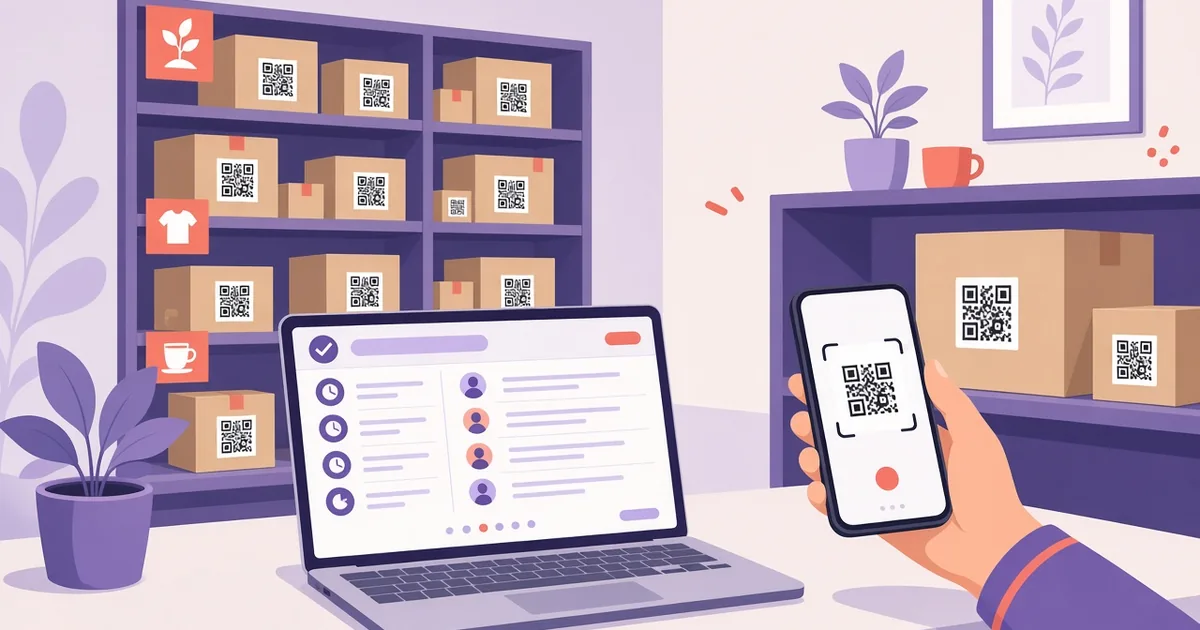
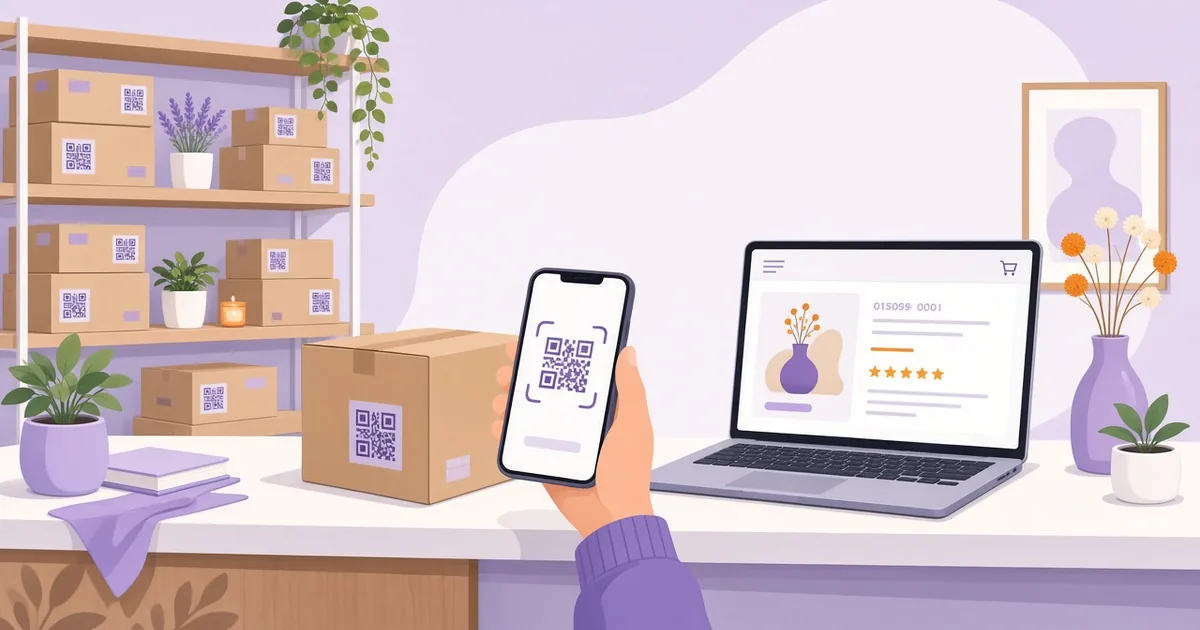
This is the workflow Scanventory is built for. It prints a QR code label for each product, with the product name and SKU. When you sell something in person, scan its label with the Scanventory app or any QR code reader app on your phone or tablet. That opens the product, and you lower the stock on the spot (Scanventory: how it works).
Because the update happens at the moment of the sale, there's no end-of-day list to forget. Scanventory's FAQ puts it this way: WooCommerce already reduces stock for online orders, and Scanventory is for everything else, such as offline sales, restocks and counts (Scanventory FAQ).
Best for: shops with regular in-person sales, like markets, pop-ups, showrooms and small retail counters.
Try Scanventory in your store
Print QR code labels from your WooCommerce admin and update stock from your phone.
Buy on WooCommerce.com$159/year · 30-day money-back guaranteeWhich option should you use?
- A handful of offline sales: edit the stock in the admin at the end of the day.
- You want every sale in the order list: add a manual order, then check the stock.
- You sell in person every day: scan QR code labels with your phone and update stock as you sell.
Tips to keep stock in sync
- Turn on stock management for every product and variation you sell in person. Without it, there's no quantity to lower.
- Label the right thing. For products with sizes or colours, print a separate QR code label for each variation, so you update the exact item you sold (variation labels guide).
- Check who changed what. If several people sell at the counter, Scanventory's Activity Log lists stock updates made through Scanventory with when, who and what (WooCommerce stock history).
- Count now and then. Even a good routine misses a sale sometimes. A regular count catches it (How to do an inventory count).
Tip: If you also hand customers a quote or invoice at the counter, Scanventory has an optional mobile invoice list: scan products into it and email the invoice through WooCommerce's email system. It's separate from WooCommerce orders, so it's a helper for floor staff, not a replacement for checkout (Scanventory documentation: Mobile & Invoice).
Common questions
Does WooCommerce sync stock for in-person sales automatically?
No. WooCommerce lowers stock for orders it processes. A sale made outside WooCommerce has to be recorded by you, with a stock edit, a manual order or a tool like Scanventory.
Do I need a barcode scanner to record offline sales?
Not with Scanventory. It works with any phone or tablet that can scan QR codes, using the Scanventory app or any QR code reader app (Scanventory).
Can I print labels for only the products I sell in person?
Yes. Select those products in Products > All Products, choose Build labels from Bulk actions, and Scanventory opens the Label Builder with just those products (Scanventory documentation: Specific Product Labels).
Keep your shelf and your store in sync
Offline sales only cause overselling when they aren't recorded. With QR code labels on your products and your phone in your pocket, recording a sale takes a scan and a tap. Buy Scanventory and keep your WooCommerce stock matching what's on the shelf.