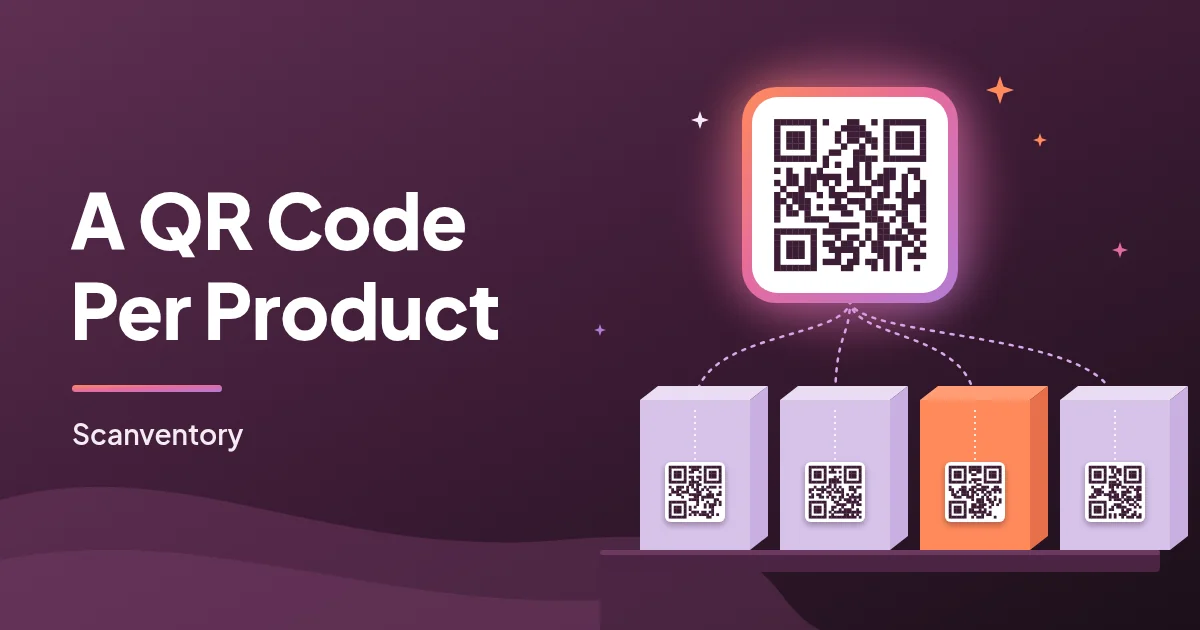
Short answer: WooCommerce doesn't create product QR codes on its own, so you need a plugin. Scanventory gives every product in your catalog its own QR code and prints it on a label with the product name and SKU. You don't upload anything or paste URLs one at a time. When you scan that label with a phone, it opens the product so you can increase or decrease stock.
That's one kind of product QR code, made for running your stock. Below you'll see how it works, how to set it up, and when you'd want a different kind of QR code instead.
Two kinds of "product QR code"
When people search for a WooCommerce QR code generator, they usually want one of two things:
- A customer-facing QR code. It's printed on a flyer, a shop window or packaging, and it sends shoppers to a product page. This is a marketing tool.
- An inventory QR code. It's stuck on the product, shelf or bin, and it's scanned by you or your staff to find the product and change its stock. This is an operations tool.
Scanventory does the second. Its Label Builder is described as the place to "configure and print QR product labels" (Getting Around), and scanning one of those labels takes you to the product so you can adjust its stock (How it works). If what you need is a code for a marketing flyer, a general QR code generator that encodes the product page URL is the simpler tool.
Why QR codes work well for inventory
A QR code is a two-dimensional code. It stores information both across and up and down, while a traditional barcode stores it in one direction only. QR codes were developed by DENSO WAVE partly because barcodes could only hold about 20 alphanumeric characters (QRcode.com history).
For a small shop, a few practical points matter more than the history:
- They're easy to read with a phone. Scanventory works with the Scanventory app or any QR code reader app, so you don't need dedicated scanner hardware (Scanventory FAQ).
- They cope with some wear. QR codes include error correction, which can restore data when a code gets dirty or damaged (QRcode.com error correction). That helps with labels on boxes that get handled a lot.
- They can be small. The size depends on how many modules (the small squares) the code has and how fine your printer can print them (QRcode.com FAQ). In Scanventory you set the printed QR size in millimetres (Universal Options).
What Scanventory puts on each product QR label
Each product gets a unique QR code, and the label shows the product name and SKU (Scanventory features). In the Label Builder you can add one more line of text under Additional Label Info (Label Builder):
- None: product name and QR code only
- Price: adds the product price
- All: adds all attribute values
- Attribute: adds one specific WooCommerce attribute, such as size or colour
For variable products, the Label For Variations setting decides whether you get one label for the parent product or a separate label for each variation. If you store sizes or colours separately, choose a label per variation so every scan opens the right item (Label Builder). We cover this in more depth in our QR code label printing guide.
How to generate QR codes for your WooCommerce products
Step 1: Install Scanventory
Scanventory installs like any other WordPress plugin, and WooCommerce must already be active. It then gets its own Scanventory menu in your WordPress admin (Installation). It needs WordPress 5.0+, WooCommerce 5.0+ and PHP 7.4+ (Scanventory pricing).
Step 2: Choose which products get codes
Open Scanventory → Label Builder. Under Label Print Options, pick All Products to build labels for every published product.
To do only a few, for example new arrivals, go to Products → All Products, tick the products, choose Bulk actions → Build labels and click Apply. You land in the Label Builder with Specific Products selected and those products listed (Specific Product Labels).
Step 3: Pick a label format
Choose a ready-made Avery-compatible sheet, or Universal to match any printer or page size (Label Builder). Universal lets you set page size, margins, gaps, columns and rows, label size, font sizes and the QR size in millimetres. There's also a Safe area so text and the QR code stay clear of cut edges (Universal Options).
Step 4: Check the Live Preview
The Live Preview on the right updates as you change options, with zoom controls and an Actual size view, so you can check the layout before you print (Live Preview).
Step 5: Build and print
Click Build Labels. The labels open in a new browser tab, ready to print (Label Builder). Print with browser and printer scaling set to 100%, not "fit to page", or the labels won't line up with your sheet (Universal Options).
Tip: do a test print on plain paper first and hold it against your label sheet. If it's slightly off, adjust the Calibration scale and try again.
Putting product QR codes to work
Once the labels are on your products, a scan opens the product so you can change its stock (Mobile & Invoice). Scanventory's homepage lists offline sales, restocks and counts as typical uses (Scanventory FAQ):
- Selling in person: scan the item at a market or counter and reduce stock right away, so your online store doesn't oversell.
- Restocking: scan items as you shelve a delivery and add the new quantity.
- Counting: scan any product whose count doesn't match and fix it on the spot. See our inventory count routine.
Every stock change made through Scanventory is recorded in the Activity Log, with when it happened, who made it and what changed (Activity Log). If you want the bigger picture on phone scanning, read WooCommerce QR Code Scanner: Use Your Phone Instead of Hardware.
What Scanventory's QR codes aren't for
To set the right expectations:
- They're QR codes only. Scanventory doesn't generate EAN, UPC or other linear barcodes, so it isn't a replacement for retail barcodes you register for marketplaces.
- They're not marketing codes. The labels are built for managing your own stock, not for sending shoppers to a product page.
- They don't replace your checkout. The optional mobile invoice feature collects scanned products into a quote you can email, but it's separate from WooCommerce orders (Mobile & Invoice).
FAQ
Does WooCommerce have a built-in QR code generator? No. WooCommerce doesn't create product QR codes on its own, so you need a plugin. Scanventory generates a unique QR code for each product and prints it on a label with the product name and SKU (Scanventory features).
Can I create QR codes for just a few products? Yes. Select the products in Products → All Products, choose Bulk actions → Build labels, and Scanventory opens the Label Builder with only those products (Specific Product Labels).
What app do I need to scan the codes? You can use the Scanventory app or any QR code reader app on a phone or tablet. No dedicated scanner hardware is needed (Scanventory FAQ).
Give every product its own QR code
Scanventory generates QR code labels for your whole WooCommerce catalog and lets you update stock with a phone scan. It also includes an Activity Log and an Inventory Report, for $159/year with a 30-day money-back guarantee. Buy Scanventory on WooCommerce.com and label your first products today.
Try Scanventory in your store
Print QR code labels from your WooCommerce admin and update stock from your phone.
Buy on WooCommerce.com$159/year · 30-day money-back guarantee