Short answer: To print labels for WooCommerce variable products with Scanventory, open the Label Builder and set Label For Variations to Yes. You then get a separate QR code label for each variation (size, colour and so on) instead of one label for the parent product. Set Additional Label Info to All or to one attribute, such as Size, so staff can tell the labels apart at a glance. Check the Live Preview, then click Build Labels.
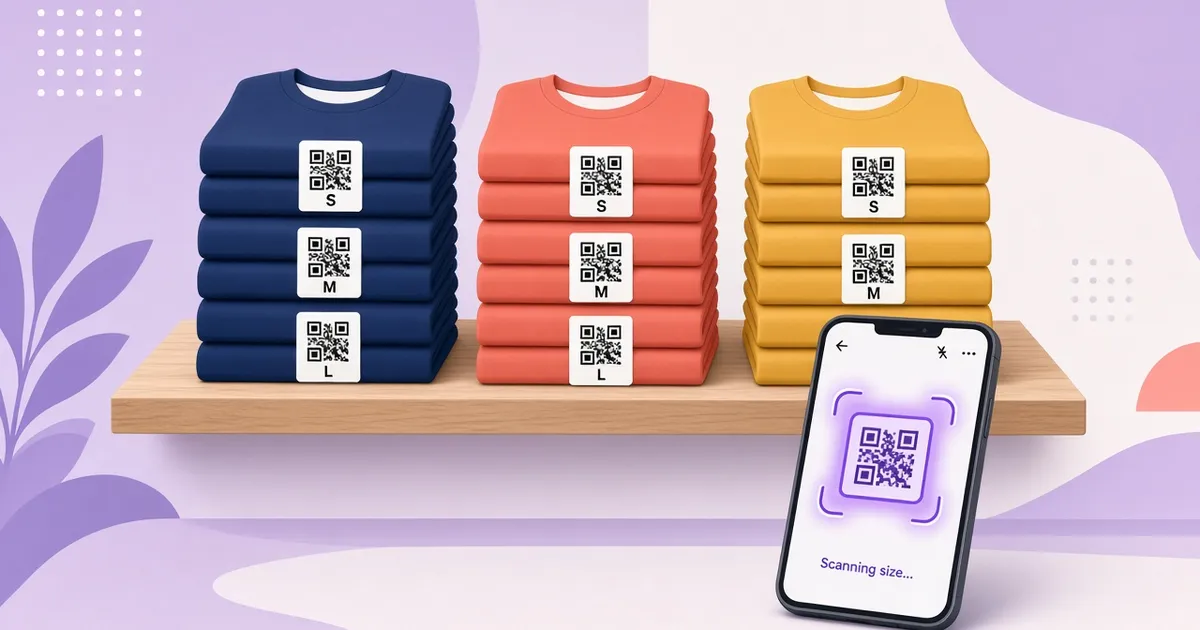
A t-shirt in three sizes and three colours is one product in your catalogue but nine different items on the shelf. This guide covers how to label each one, how to set up variation SKUs and stock in WooCommerce first, and when one label per parent product is enough.
Label For Variations: Yes or No?
The Label For Variations option in the Label Builder has two settings (Label Builder):
- No: one label per parent product.
- Yes: a separate label for each variation (size, colour, etc.).
Which one you need depends on how you track stock in WooCommerce. WooCommerce lets you manage inventory for a variable product at the product level, at the variation level, or a mix of both (WooCommerce: Variable products):
- Product-level stock is one shared quantity for all variations. One label per parent product (No) fits this setup.
- Variation-level stock is a separate quantity per variation. WooCommerce's example is a t-shirt in three colours: when someone buys the red one, only the red stock goes down (WooCommerce: Variable products). Here you want Yes, so each size or colour on the shelf has its own label.
If you mix the two, decide per product. You can print variation labels for the products that track stock per variation, and parent labels for the rest, by running the Label Builder twice with different product selections (see Step 3).
Before you print: set up variations in WooCommerce
Labels are only as useful as the product data behind them. Check these settings on each variable product first:
- Give each variation its own SKU. In WooCommerce you can enter an SKU per variation or leave it blank. If you leave it blank, the variation uses the parent product's SKU (WooCommerce: Variable products). Nine variations sharing one SKU are hard to tell apart on a label or in a report, so set a unique one for each, for example TSHIRT-NAVY-M.
- Turn on Manage stock? for each variation you want to count separately, and enter its stock quantity (WooCommerce: Variable products).
- Check the attributes are filled in (Size, Colour and so on). These are the values you can print on the label in the next step.
Step 1: Turn on variation labels
Open Scanventory in your WordPress admin. The Label Builder shows configuration cards on the left and the Live Preview on the right (Label Builder). In the Product Options card, set Label For Variations to Yes.
Step 2: Show the size or colour on the label
QR codes all look alike to people, so the printed text has to do the work. Scanventory's Additional Label Info setting adds extra text to each label (Label Builder):
- None: product name and QR only.
- Price: adds the product price.
- All: adds all attribute values.
- Attribute: …: adds one specific WooCommerce attribute.
For variations, All works well when you have two attributes such as size and colour. If the colour is obvious from the product itself, choosing just the Size attribute keeps the label short and easier to read on small stickers. Each label also carries the product name, SKU and its own QR code (Scanventory features).
Tip: more text needs more room. If the attribute values get crowded, lower the body text size under Fonts or the QR code size, both set in the Universal options (Universal Options), and check the result in the Live Preview.
Step 3: Pick the products and print
Variable products can create a lot of labels at once, so it's worth printing only what you need:
- All Products builds labels for every published product (Label Builder).
- For a few products, go to Products → All Products, tick the ones you want, choose Bulk actions → Build labels and click Apply. You land in the Label Builder with Specific Products selected (Specific Product Labels).
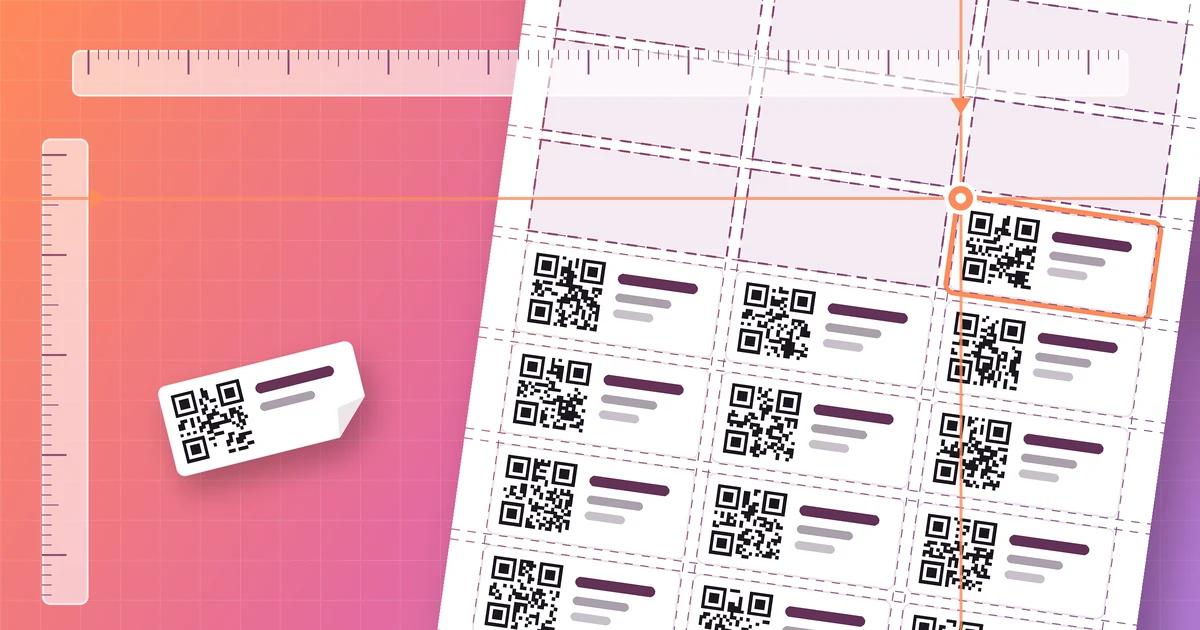
Look at the Live Preview to confirm there is one label per variation and that the attribute text fits. Then click Build Labels. The labels open in a new browser tab for printing (Label Builder). Print at 100% scale with "fit to page" turned off (Universal Options). If you print on label sheets, our Avery labels guide covers alignment and partly used sheets.
Try Scanventory in your store
Print QR code labels from your WooCommerce admin and update stock from your phone.
Buy on WooCommerce.com$159/year · 30-day money-back guaranteeWhere to put variation labels
- On the item or its packaging, when each piece is handled on its own.
- On the shelf edge or a bin, when you keep a pile of one size together. Scanventory can also print custom labels for inventory bins (Scanventory features).
Keep each variation in its own spot if you can. A shelf where medium and large are mixed is where miscounts start, whatever labels you use.
Scanning and counting variations
Scan a label with the Scanventory app or any QR code reader app on your phone or tablet, and it takes you to that product so you can increase or decrease its stock (How it works). Scan one label of each variation after printing to check it opens the item you expect before you stick on the whole batch.
For counts, the Inventory Report shows stock for simple and variable products, and you can review or print it from the browser (Inventory Report). The Activity Log records who changed stock through Scanventory, what changed and when (Activity Log). Our inventory count guide walks through a full counting routine.
FAQ
Can Scanventory print one label for each WooCommerce variation? Yes. Set Label For Variations to Yes in the Label Builder and you get a separate label for each variation (Label Builder).
How do I show the size on a variation label? Set Additional Label Info to Attribute: … and choose your size attribute, or to All to print every attribute value (Label Builder).
What SKU appears if a variation has none? In WooCommerce, a variation with a blank SKU uses the parent product's SKU (WooCommerce: Variable products). Give each variation its own SKU if you want the labels to be easy to tell apart.
Can I print EAN or UPC barcodes for variations? No. Scanventory prints QR code labels only. Each label gets its own QR code for managing stock with phone scanning (Scanventory FAQ).
Label your variations
Scanventory adds QR code labels, phone scanning, an Activity Log and an Inventory Report to WooCommerce for $159/year, with a 30-day money-back guarantee. Buy Scanventory and print labels for your first variable product today. All settings are in the documentation, and WooCommerce QR Code Generator: A QR Code for Every Product explains what each code does.