Short answer: Scanventory can turn phone scans into a quick quote. Turn on Invoice in the Stock Rules tab, then scan product QR code labels with a phone or tablet to collect them into a temporary quote/invoice list on that device. Review the quantities on the mobile invoice screen and send it as an email through WooCommerce's email system (the "Scanventory Invoice" email). This list is separate from WooCommerce orders: it's a lightweight helper for floor staff, not a replacement for checkout (Mobile & Invoice).
If a customer is standing in your shop or warehouse and asks "what would all this cost?", typing a quote by hand is slow. Here's how the Scanventory mobile invoice works and when to use it.
What the mobile invoice is (and isn't)
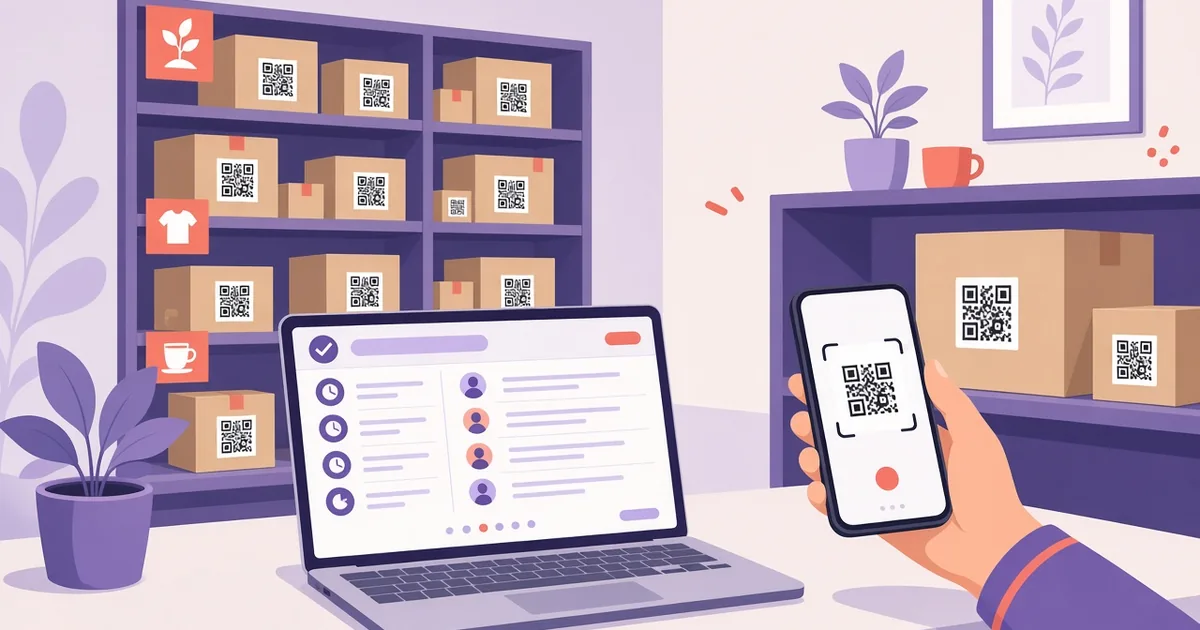
Scanventory prints a unique QR code for each product. Scanning that label with a phone opens the product, so staff can edit stock on the spot (Scanventory). The mobile invoice adds a second use for the same labels: collecting products into a list you can email.
According to the documentation, with Invoice enabled you can (Mobile & Invoice):
- Scan products into a temporary quote/invoice list. The list is kept in a cookie-based session on the device doing the scanning.
- Review quantities on the mobile invoice screen.
- Send the invoice email through WooCommerce's email system, as the Scanventory Invoice email.
What it is not:
- It doesn't create a WooCommerce order. The docs describe the list as separate from WooCommerce orders.
- It doesn't replace your checkout or payment flow.
- It isn't shared between devices. Because the list lives in a session on that phone or tablet, build each quote on one device.
Think of it as a scratch pad for floor staff that turns into a tidy email.
When a scan-to-quote workflow helps
A few situations where it fits well:
- Walk-in customers. Walk the shelf with the customer, scan what they point at, and email them the list.
- Trade or bulk enquiries. Collect the products for a quote while you're standing next to the stock.
- Showrooms and events. Staff with phones can gather items without going back to a desk.
If the customer is ready to pay right away, use your normal WooCommerce checkout or point-of-sale process. The mobile invoice is for the "send me a quote" moment.
Step 1: Enable Invoice in Stock Rules
In WordPress admin, open Scanventory and go to the Stock Rules tab. There you'll find two options (Stock Rules):
- Restore Stock: when checked, stock is returned automatically if a customer cancels an order.
- Invoice Enable/Disable: enables the mobile invoice / quote workflow, where scanned products can be collected and emailed as an invoice.
Turn on Invoice and click Save Changes.
Step 2: Make sure your products have QR code labels
The workflow depends on scanning, so every product you might quote needs a label. Build them in the Label Builder, either for all products or for a selection from Products → All Products with the Bulk action Build labels (Label Builder, Specific Product Labels).
If you sell sizes or colours, turn on Label For Variations so each variation gets its own QR code. That way the quote lists the exact variation, not just the parent product. See labels for WooCommerce variations for the details.
New to labels? Start with how to print QR code labels for WooCommerce.
Step 3: Scan products into the quote
Use the Scanventory app or any QR code reader app on a phone or tablet (Scanventory). With Invoice enabled, scanned products can be collected into the temporary quote/invoice list on that device (Mobile & Invoice).
A few practical habits:
- Use one device per quote, since the list is stored in that device's session.
- Scan from the product's own label so the right item (and variation) lands in the list.
- Keep labels clean and flat. Scuffed or curled QR codes are harder to read with a phone camera.
Step 4: Review quantities and email the invoice
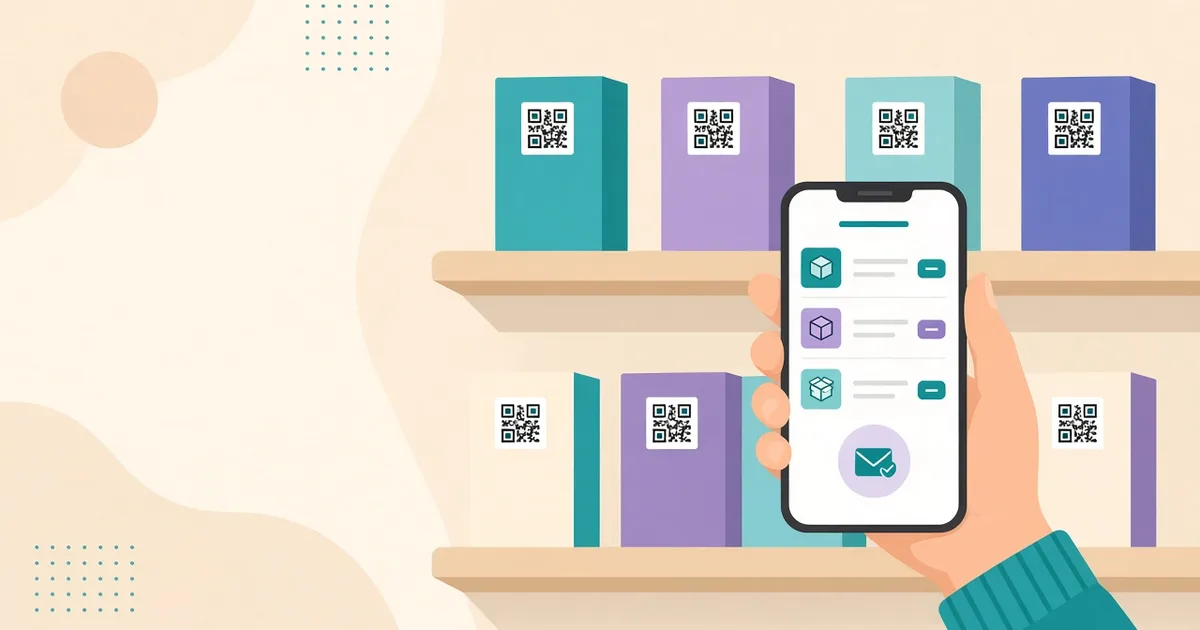
Open the mobile invoice screen, check the quantities, and send it. Scanventory sends the invoice through WooCommerce's email system as the Scanventory Invoice email (Mobile & Invoice).
Because it goes through WooCommerce email, it's worth sending a test to yourself first so you know what customers will receive and that your store's mail delivery works.
Try Scanventory in your store
Print QR code labels from your WooCommerce admin and update stock from your phone.
Buy on WooCommerce.com$159/year · 30-day money-back guaranteeMobile invoice vs stock edits
The same QR label does two jobs, so it helps to keep them apart in staff training:
| Task | What staff do | Where it shows up | |---|---|---| | Edit stock | Scan the label, open the product, change the stock | Product stock, plus the Activity Log | | Build a quote | Scan the label into the mobile invoice list, then email it | The Scanventory Invoice email, not a WooCommerce order |
If you also sell in person and need stock to follow those sales, see how to sync offline sales with WooCommerce stock.
Common questions
Does the mobile invoice create a WooCommerce order?
No. The documentation says the invoice list is separate from WooCommerce orders. It's a lightweight quote/invoice helper for floor staff, not a replacement for the checkout order system (Mobile & Invoice).
How is the invoice sent?
By email, through WooCommerce's email system, as the Scanventory Invoice email (Mobile & Invoice).
Can two staff members build the same quote on different phones?
The list is a cookie-based session on the device, so build each quote on a single phone or tablet.
Do I need a barcode scanner?
No. Any phone or tablet that can scan QR codes works, with the Scanventory app or any QR code reader app (Scanventory FAQ). Scanventory uses QR codes only; it doesn't print EAN or UPC barcodes.
Where do I turn the feature on?
In the Scanventory Stock Rules tab: enable Invoice and click Save Changes (Stock Rules).
Quote faster from the shop floor
The WooCommerce mobile invoice in Scanventory reuses the QR labels you already print: enable Invoice, scan products on a phone, check quantities and email the quote. It saves retyping product names and SKUs while the customer waits. Buy Scanventory and try your first scan-to-quote today.