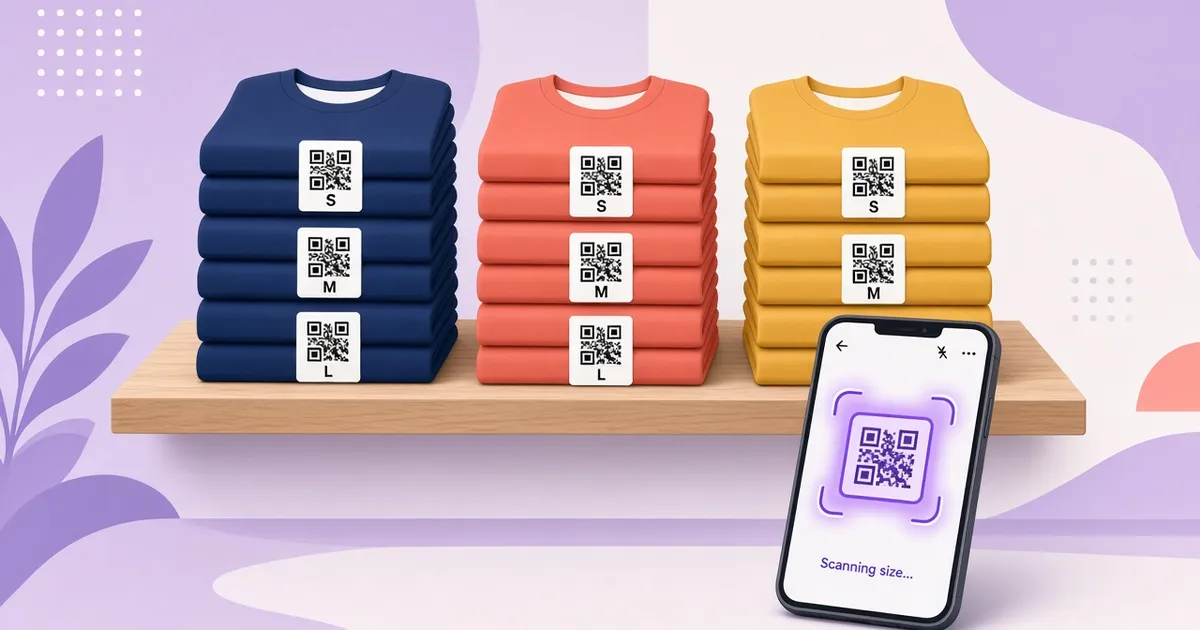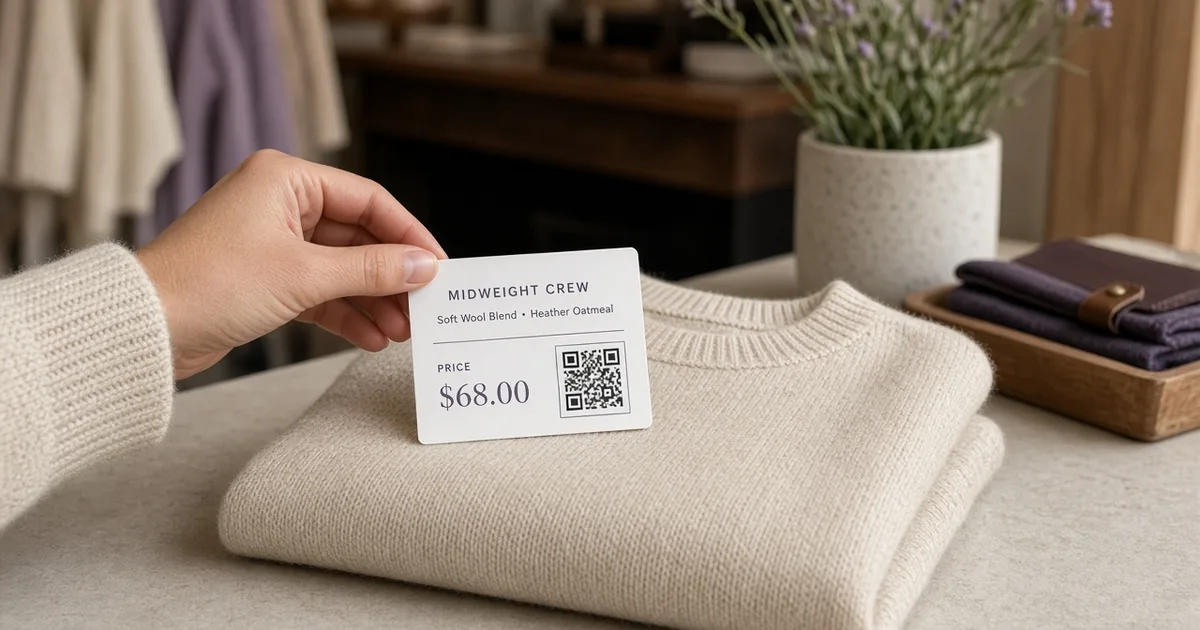
Short answer: In Scanventory's Label Builder, set Additional Label Info to Price. Each label then prints the product name, the product price and the product's QR code (Label Builder). Customers see the price on the shelf, and your staff can scan the same label with a phone to open the product and update stock.
A label that only carries a QR code is perfect for the stockroom. On a shop shelf or a counter, though, people want to read the price without asking. Scanventory lets you choose what extra text goes on each label, so one tag can do both jobs.
What Scanventory can print on a label
Every Scanventory label has the product name and a QR code. The Additional Label Info option adds one extra line of information (Label Builder):
- None: product name and QR only.
- Price: includes the product price.
- All: includes all attribute values.
- Attribute: …: includes one specific WooCommerce attribute, such as size or colour.
You pick one option per print run. For price tags, choose Price.
When to print the price on your labels
- Shop shelves and displays. Customers can read the price without a separate price tag.
- Counters and market stalls. Staff can quote the price at a glance and scan the QR code to record the sale (Scanventory FAQ).
- Stockroom only? Choose None to keep labels clean. A price on a stockroom bin label is just one more thing to reprint when prices change.
How to print WooCommerce labels with price
- In the WordPress admin, open Scanventory. The Label Builder is the default screen (Getting Around).
- Under Label Print Options, choose All Products, or select products on Products → All Products and use the Bulk action Build labels to print Specific Products (Specific Product Labels).
- Set Additional Label Info to Price.
- If you sell variable products, set Label For Variations to Yes to get a separate label for each variation (Label Builder).
- Choose a Label Format: a ready-made Avery-compatible sheet, or Universal for any printer or page size.
- Check the Live Preview on the right. It updates as you change options, so you can see the price on the label before you print (Live Preview).
- Click Build Labels. The labels open in a new browser tab, ready to print. Print at 100% scale, with no "fit to page" (Universal Options).
Tip: If the price line looks cramped on small labels, open Content & Typography (Universal format) and lower the body text size or the QR code size until the preview looks right (Universal Options).
New to label sheets? Start with how to print QR code labels for WooCommerce or the label printer setup guide.
Keep printed prices up to date
A printed label shows the price at the moment you printed it. When you change a price in WooCommerce, reprint the labels for those products:
- Go to Products → All Products and select the products whose prices changed.
- Choose Build labels from Bulk actions to open the Label Builder with just those products.
- Keep Additional Label Info on Price and print.
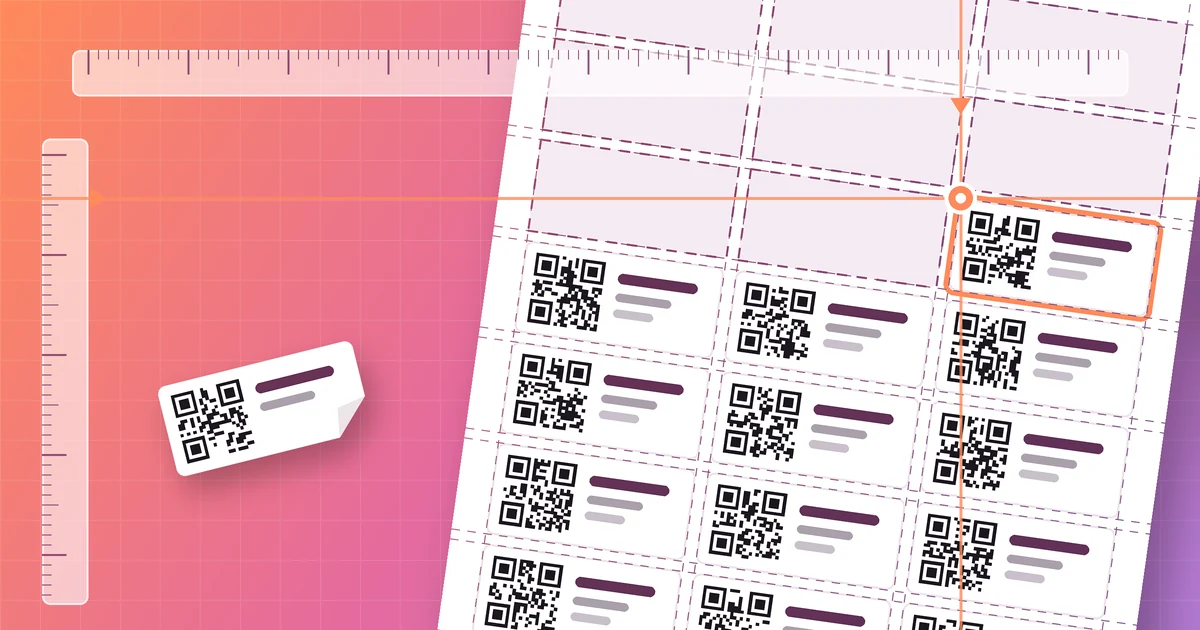
If you are reprinting on a partly used sheet with the Universal format, set Start position to the first empty row and column so no stickers go to waste (Universal Options).
Price or attributes: which to choose?
Additional Label Info prints one kind of extra information per run. A simple rule:
- Customer-facing shelf or counter: Price.
- Variations that look alike (sizes, colours): an attribute, so staff can tell them apart. See labels for WooCommerce variations.
- Stockroom bins: None. See WooCommerce bin labels.
What Scanventory does and doesn't do
Scanventory prints QR codes on its labels: each product gets its own code, and scanning it opens that product so you can edit it (Scanventory FAQ). It doesn't generate retail barcodes, so these price labels are for your own shelves, counters and stockroom.
Try Scanventory in your store
Print QR code labels from your WooCommerce admin and update stock from your phone.
Buy on WooCommerce.com$159/year · 30-day money-back guaranteeFAQ
Can WooCommerce print price labels? WooCommerce itself doesn't include a label printer. With Scanventory, set Additional Label Info to Price in the Label Builder to print the product name, price and QR code on each label (Label Builder).
Can I print price labels for only a few products? Yes. Select the products on Products → All Products, choose the Bulk action Build labels, and the Label Builder opens with Specific Products selected (Specific Product Labels).
Can I print the price and the size on the same label? Additional Label Info takes one option per print run: None, Price, All attributes, or one attribute. Choose the one that matters most where the label will be used.
Ready to print price labels? Buy Scanventory.