Short answer: To print Avery labels for WooCommerce, open Scanventory's Label Builder and pick a ready-made Avery-compatible sheet as the Label Format. If none matches your sheet, pick Universal and enter the sheet's layout. Print one test on plain paper at 100% scale and hold it against the label sheet. If it's off, fix the margins or calibration scale. To finish a partly used sheet, set Start position to the first free row and column.
Our QR code label printing guide covers the whole Label Builder. This post sticks to office label sheets: choosing the right format, getting every QR code onto its sticker, and using up the labels left on a sheet.
Avery-compatible preset or Universal?
Scanventory's Label Format setting gives you two routes (Label Builder):
- A ready-made Avery-compatible sheet. Preset formats already know how many labels fit on a sheet, so there's nothing to measure.
- Universal, which you configure for any printer or page size. You set the grid yourself as columns × rows.
The documentation doesn't list which Avery product numbers the presets match. So don't assume a preset fits your box of labels just because the name looks close. Check it against your actual sheet in the Live Preview. Its Template / page info line shows the active format and page dimensions (Live Preview).
Choose Universal when no preset matches, or when you need the fine-tuning options described below. In the documentation, Margins, Start position, Safe area and Calibration scale are listed under the Universal panels. Those panels appear when Label Format is set to Universal (Universal Options).
Before you print
- Find your sheet's product number. Avery prints it on the package or the label sheet, and you can look it up at avery.com/templates (Avery: Find templates).
- Have a ruler handy if you'll use Universal. The settings are in millimetres: page width and height, margins, gaps between labels, and the size of one label (Universal Options).
- Keep some plain paper next to the printer for test prints.
- Pick your products. Use All Products for a full run. For a few items, select them in Products → All Products and choose Bulk actions → Build labels (Specific Product Labels).
Step 1: Set up the format
Open Scanventory in your WordPress admin. The Label Builder shows configuration cards on the left and the Live Preview on the right (Label Builder).
If you use an Avery-compatible preset, select it and compare the preview with your sheet. Check the number of columns and rows and the page size.
If you use Universal:
- Pick a Preset close to your sheet (for example A4 3×8) or Custom. A preset loads the page size, margins, grid and label size, and you can then edit them.
- Set Page size (A4, Letter and so on) or the exact page width and height in mm.
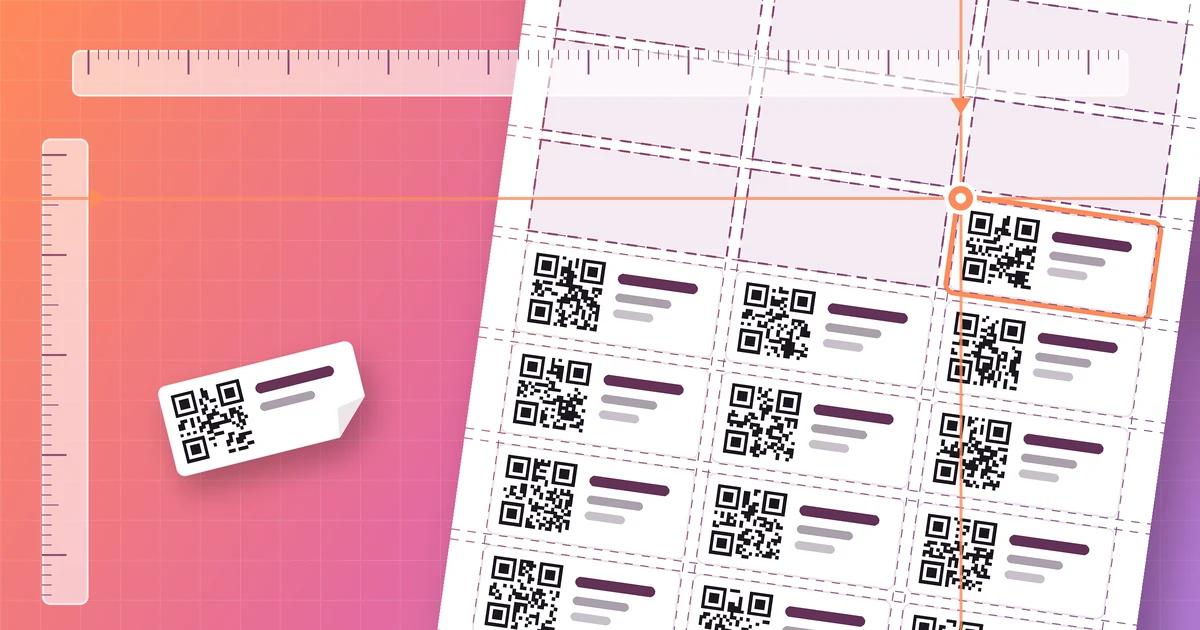
- Measure and enter Margins from the page edge to the label grid, and Gaps between labels (X and Y).
- Enter Grid columns and rows, and the label Size (width and height of one label).
- Set the QR code size in mm so it fits comfortably inside the label.
All of these options are described in the Universal Options section of the docs. Each card also has Reset to Default, which helps if you get lost (Label Builder).
Step 2: Print a test on plain paper
Click Build Labels. The labels open in a new browser tab (Label Builder). In the print dialog, set scaling to 100% and turn off "fit to page" in both the browser and the printer settings (Universal Options).
Avery gives the same advice for its own templates. Set the correct paper size and scale to 100%, and choose a Label, Heavyweight or Cardstock media type if your printer offers one (Avery: Not printing correctly). Avery also suggests printing a test sheet on plain paper first to confirm alignment (Avery: Practice test sheet).
Put the plain-paper print on top of a label sheet and hold both up to a window or a lamp. You can now see exactly where each QR code would land.
Step 3: Fix label printing alignment
Read the test sheet and change one setting at a time:
- Everything is shrunk, or drifts more and more across the page: check scaling first. If the print dialog already says 100%, adjust Calibration scale in small steps. 1 means 100% (Universal Options).
- Everything is shifted by the same amount: adjust Margins. The docs say to match your printer's non-printable area (Universal Options). Avery describes the same kind of consistent shift up, down, left or right as something you fix by nudging the template (Avery: Adjust print alignment).
- Rows or columns slowly fall out of step: check Gaps and the label Size against your ruler.
- Text or the QR code touches the cut edge: increase the Safe area, the inner padding that keeps content away from the edges (Universal Options).
- The page itself is wrong (labels cut off at the bottom, for example): check that the page size in Scanventory and in the print dialog matches the sheet.
Repeat the plain-paper test until it lines up, then print on the real label sheet. Write down the settings that worked so you can use them for the next box of the same sheets.
Tip: the Actual size button in the Live Preview tries to show the sheet at 1:1 on screen, but that depends on your display's DPI (Live Preview). Use a paper test, not the screen, to judge alignment.
Try Scanventory in your store
Print QR code labels from your WooCommerce admin and update stock from your phone.
Buy on WooCommerce.com$159/year · 30-day money-back guaranteeHow to print labels on a partially used sheet
Say you printed a few labels last week and peeled them off. The rest of the sheet is still good. Scanventory's Start position setting sets the first row and column to fill, and the docs describe it as useful when reprinting on a partially used sheet (Universal Options). The homepage calls this the start offset for partial sheets (Scanventory FAQ).
- Count where the first free label is. For example, if the top two rows are used, start at row 3, column 1.
- Select only the products you need with Bulk actions → Build labels, so you don't print more than the sheet has room for (Specific Product Labels).
- Set Start position and check the Live Preview before printing.
- Do a plain-paper test with the same start position if you've changed any other settings since last time.
Should you put a used sheet back in the printer?
Be careful here. Avery says its sheet labels should only go through a laser or inkjet printer once. Its jam-free guarantee only covers a sheet that has been through a laser printer a single time, because heat and the tight paper path can make labels curl and peel off inside the printer (Avery: Printing a few labels). Avery also warns that printing more than once on the same sheet can damage the adhesive, change the colour of the labels or cause a jam (Avery: Printing more than once).
So Start position is useful, but whether you reuse a sheet is your call, based on your printer and the state of the sheet. If you print small batches often, there are other options. You can print a whole sheet at once and keep the spare labels for upcoming stock. You can buy smaller sheets, which Avery itself suggests for small quantities (Avery: Printing a few labels). Or you can switch to a roll label printer, which Scanventory supports too (Scanventory features).
A routine for small label batches
- Add new products and their SKUs in WooCommerce.
- Select them in the product list and choose Build labels.
- Confirm the format and saved settings, and set Start position if needed.
- Print at 100% scale, stick the labels on, and scan one to check it opens the right product. You can use the Scanventory app or any QR code reader app (Scanventory FAQ).
Once the labels are on, scanning a label lets you increase or decrease that product's stock from your phone (How it works). See WooCommerce QR Code Generator: A QR Code for Every Product for what each code does, and our inventory count guide for putting the labels to work.
FAQ
Which Avery templates does Scanventory support? The Label Builder offers ready-made Avery-compatible sheets, but the documentation doesn't list specific template numbers (Label Builder). Compare a preset with your sheet in the Live Preview. If none matches, use Universal and enter the layout yourself.
Why don't my labels line up? Usually because of scaling. Print at 100% with "fit to page" turned off. Then use Margins for an even shift and Calibration scale for an error that grows across the page (Universal Options).
Can I print EAN or UPC barcodes on Avery labels? No. Scanventory prints QR code labels only. Each label carries the product's own QR code, name and SKU, made for managing your stock with phone scanning (Scanventory features).
Print your first sheet
Scanventory adds QR code labels, phone scanning, an Activity Log and an Inventory Report to WooCommerce for $159/year, with a 30-day money-back guarantee. Buy Scanventory and print a test sheet today. The full settings reference is in the documentation.